If you’ve ever tried to figure out what format Threads videos are actually stored in, you’ve probably noticed that the platform doesn’t make that obvious. What you see playing in the app is a video — but what format is it? And does it matter when you want to save it?
The short answer: Threads videos are stored as MP4 files on Meta’s servers. When you download them correctly, that’s exactly what you get — a standard MP4 that plays everywhere, edits easily, and shares without compatibility issues.
Here’s how the whole thing works and how to get the file.
Why MP4 Is the Right Format
MP4 (technically MPEG-4 Part 14) is the closest thing to a universal video standard that exists right now. A few reasons it matters:
It plays on everything. iPhone, Android, Windows, Mac, smart TVs, tablets — any device with a media player handles MP4 without needing any conversion or additional software.
It’s what video editors expect. If you want to trim the clip, add it to a project, or edit it in iMovie, CapCut, Premiere Pro, or DaVinci Resolve, MP4 is the format they work with natively. No conversion step required.
It keeps quality intact. MP4 with H.264 encoding — which is what Threads uses — delivers excellent visual quality at a reasonable file size. You’re not sacrificing anything by downloading in this format.
It’s shareable everywhere. WhatsApp, Telegram, email, Slack — all of them handle MP4 files without any issues. The recipient doesn’t need any special software to watch it.
How Threads Stores Video (And Why That Helps You)
When someone uploads a video to Threads, it gets stored on Meta’s content delivery network in MP4 format. When you open the app and watch a video, your device is streaming that MP4 file directly from their servers.
A browser-based downloader like savethr.com simply retrieves the same file that would stream to your browser anyway, and gives you a way to save it locally. There’s no actual “conversion” happening in the traditional sense — the video is already in MP4 format. The tool is just making the file accessible for download instead of just streaming it.
This is why the downloaded file has the same quality as what you watched in the app — because it’s the same file.
Common Scenarios Where You’d Want an MP4 File
Editing the video. You want to cut a clip, add it to a compilation, or use it in your own content (with the creator’s permission). Any video editor accepts MP4 directly.
Sharing on other platforms. Posting a clip to YouTube, embedding in a presentation, adding to a portfolio — all of these are easier with a local MP4 file than with a Threads link that requires an account to view.
Archiving content. Posts get deleted. Accounts disappear. If you want to keep something, a local MP4 is the only reliable way to do it.
Offline viewing. Watch later on a plane, in a location with no signal, or without burning mobile data. Once it’s on your device, you don’t need internet to play it.
How to Get a Threads Video as MP4
Using savethr.com — works in any browser on any device:
Step 1 — Copy the Threads post link Open the post in the Threads app, tap the three-dot icon, and select Copy link. On desktop, copy the URL from the address bar.
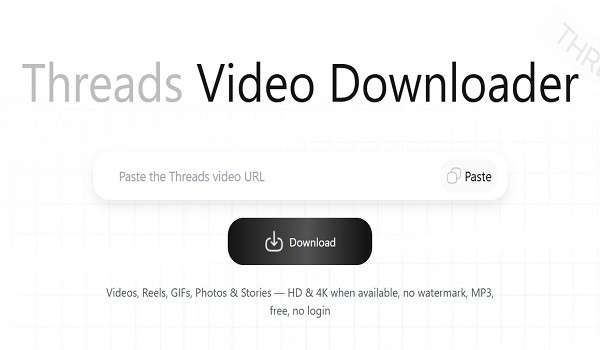
Step 2 — Paste it into savethr.com Go to savethr.com and paste the link into the input field. Tap Download.
Step 3 — Choose quality and save the MP4 The site shows you the available quality options — typically 720p and 1080p depending on what the original creator uploaded. Select the quality you want and the MP4 file downloads directly to your device.
On Android it saves to your Downloads folder. On iPhone, tap Save Video when prompted to send it to your Photos app.
Does the Quality Stay the Same?
Yes — the MP4 you download is pulled directly from Threads’ servers without any re-encoding. If the original was uploaded at 1080p, you can download a 1080p file. The bitrate and resolution are preserved exactly as they were when the creator uploaded it.
The only variable is what the creator uploaded in the first place. If they posted a lower-resolution video, that’s the maximum quality available.
Comparison: Download Methods and Output Quality
| Method | Output format | Quality preserved | Works on iPhone | No install |
| savethr.com | MP4 (original) | Yes | Yes | Yes |
| Screen recording | MP4 (re-encoded) | Degraded | Yes | Yes |
| Browser source method | MP4 (original) | Yes | Complicated | Yes |
| Third-party apps | MP4 | Variable | Not always | No |
The screen recording method produces an MP4, but it’s a re-encoded version of the playback — not the original file. Quality degrades noticeably, especially on longer videos or content that was originally high resolution.
Can You Edit the Downloaded MP4?
Yes, straightforwardly. The file you get from savethr is a standard H.264 MP4 — compatible with:
- iPhone / iPad: iMovie, CapCut, Photos app
- Android: CapCut, InShot, Google Photos editor
- Mac: iMovie, Final Cut Pro, DaVinci Resolve
- Windows: Premiere Pro, DaVinci Resolve, Clipchamp
No format conversion needed before importing.
The Short Version
Threads videos are already stored as MP4 on Meta’s servers — you’re not really “converting” anything, you’re just downloading the file that already exists. Using savethr.com as your Threads to MP4 tool, paste the post link, choose quality, and the file saves to your device. Original resolution, no re-encoding, works on any device or video editor.